
JPEG
Compress photographs in bulk with adjustable lossy quality.
Drop images or folders here, or , or click to choose
Batch compress images with Squoosh codecs in your browser. Add files or a folder, compare quality and file size, then export JPEG, PNG, WebP or AVIF images in bulk.
Try a sample
Select multiple image files, choose a folder, drag files in or paste an image.
Compare quality and file size, then select the codec, resize and output options.
Apply the settings to the queue and download every processed image in one ZIP.
Batch compress images with Squoosh codecs, preview one result and apply the selected format, quality and resize settings to the queue.
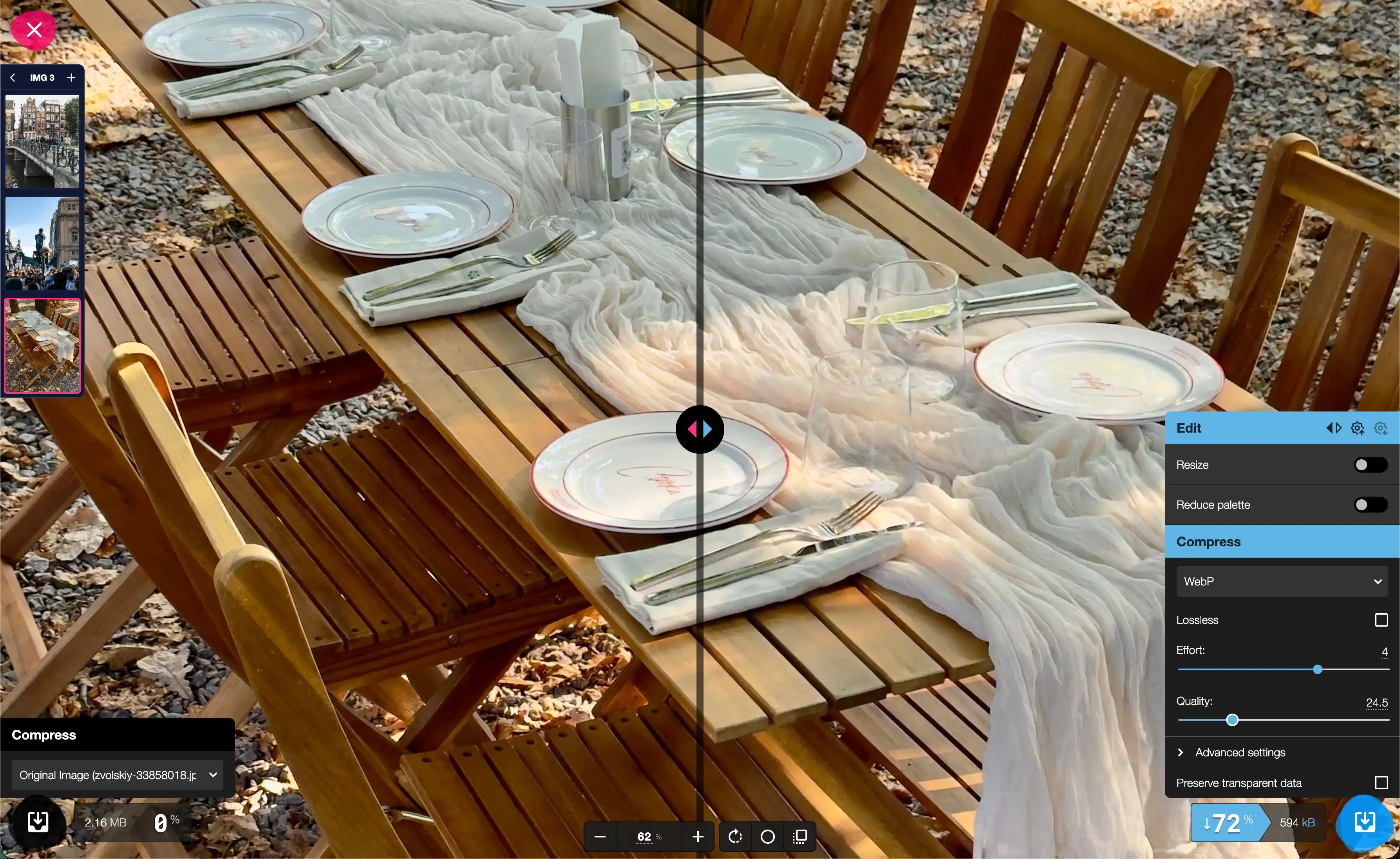
Reuse the selected codec, quality and resize options for every queued image.
Compare image quality and file size before processing all images.
Export the completed image queue together instead of downloading files individually.
Batch convert images to one output format while keeping consistent quality and resize settings across the complete queue.
Compress photographs in bulk with adjustable lossy quality.
Batch process lossless graphics and images with transparency.
Batch convert images to WebP for smaller web-ready files.
Batch convert images to AVIF for high-efficiency compression.
Squoosh codecs run locally in the browser. Vicoco does not send source images to a processing server.
Add multiple images or a folder, choose the output format, quality and resize settings in the Vicoco editor, then process the queue and download the compressed images as a ZIP.
Yes. Vicoco adds a batch queue to Squoosh codecs so one set of compression and resize settings can be applied to every selected image.
Yes. Select WebP or AVIF in the editor, preview the result, then export the entire image batch in the chosen format.
No. Image decoding and compression run locally in your browser, so your source files stay on your device.
You can add JPEG, PNG, WebP, AVIF and SVG images, then export the processed batch as JPEG, PNG, WebP or AVIF files.
Yes. Set the target width and height in the editor, preview the result, and apply the same resize settings to the complete image queue.
Yes. Vicoco is free to use for batch image compression and does not require an account.
Add multiple images or a folder and continue in the Vicoco editor.